In case of a disaster in the production site when all critical VMs go offline and Veeam backup server becomes inaccessible, you can perform full site failover using Veeam Service Provider Portal. Veeam Service Provider Portal is a standalone web tool that allows a tenant to run a cloud failover plan remotely from a web browser on a desktop computer or a portable device.
You can access Veeam Service Provider Portal with a web browser on a desktop computer or a portable device. To ensure successful usage of Veeam Cloud Connect Portal, consider using the following supported web browsers:
- For desktop computers:
- Microsoft Internet Explorer 10 or later
- Microsoft Edge
- Latest versions of Mozilla Firefox and Google Chrome
- For portable devices (tablets): latest versions of Apple Safari for iOS and Google Chrome for Android
You can access Veeam Service Provider Portal with a web browser using URL address and credentials of the tenant account provided to you by OneNet.
To access Veeam Service Provider Portal, open your web browser and enter the following address to the address bar: https://vac.onenet.co.nz
To perform full site failover by remotely starting a cloud failover plan, you need to log in to Veeam Service Provider Portal.
To log in to Veeam Service Provider Portal:
- Access the OneNet Veeam Service Provider Portal.
- In the User field, type the user name of the tenant account provided to you by OneNet.
- In the Password field, type the password of the tenant account provided to you by OneNet.
- Select the Remember me option to save the specified credentials in the browser cookie. With this option enabled, you will not need to type the username and password every time you access Veeam Service Provider Portal.
- Click Login.
Starting Failover Plans
- Log in to Veeam Service Provider Console.
- In the menu on the left, click Failover Plans.
- Select one or more plans in the list.
- At the top of the list, click Start.
Alternatively, you can right-click the necessary failover plan and choose Start.
- In the Start Plan window, select the restore point to which you want to fail over:
- Select the Start to the latest restore point option to fail over to the latest VM replica restore point.
Veeam Service Provider Console will search for the latest restore point for each VM replica across all replication jobs that are configured on the backup server.
- Select the Start to the most recent VM replica option and set the date and time to fail over to a specific VM replica restore point.
Veeam Service Provider Console will search for the closest restore point prior to the specified date and time for each VM replica across all replication jobs that are configured on the backup server.
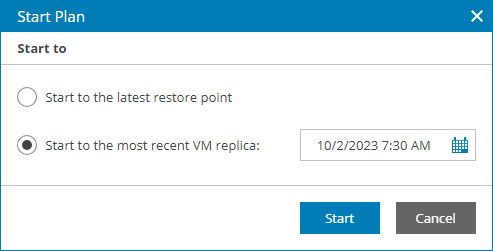
- Click Start.
Undoing Failover Plans
- Log in to Veeam Service Provider Console.
- In the menu on the left, click Failover Plans.
- Select one or more plans in the list.
- At the top of the list, click Undo.
Alternatively, you can right-click the necessary failover plan and choose Undo.
Testing Failover Plans
- Log in to Veeam Service Provider Console.
- In the menu on the left, click Failover Plans.
- At the top of the list, in the Type section on the filter bar, choose the Cloud option to show all cloud failover plans.
- Select one or more plans in the list.
- At the top of the list, click Test.
Alternatively, you can right-click the necessary failover plan and choose Test.
Veeam Service Provider Console will display the result of the test in the Status column.
Comments